Smoobu
Connecting Smoobu lets Supahost read your listings, bookings and guest messages, and reply on your behalf. You do this once, for the whole account.
Connect it
- In Supahost, open Apps, choose Smoobu, and select Connect. A secure connection page opens in a new tab. It's hosted by our PMS integration partner, so the address bar shows a different domain — that's expected. Enter your details there and you'll be returned to Supahost. It asks for an API key, so leave it open.
- In Smoobu, open Settings → For Developers and choose Generate API Keys. Copy the key.
- If there is no API section in your account, ask Smoobu's support team from inside your Smoobu dashboard to enable it.
- Paste it into the connection page and select Connect.
Supahost then brings your listings and bookings across. The first sync takes a few minutes; after that it keeps up on its own.
Turn on real-time updates
Until this is set up, guest messages, cancellations and booking changes from Smoobu won't reach Supahost, and new bookings arrive up to an hour late.
Copy your Supahost address
Find your address in Supahost: Apps → Smoobu → your account → Turn on real-time updates.
In Smoobu, open Advanced → API Keys from the left-side menu (older accounts: Settings → For Developers).
Paste your Supahost address into the Webhook URLs field. If there are already addresses there, keep them and add yours.
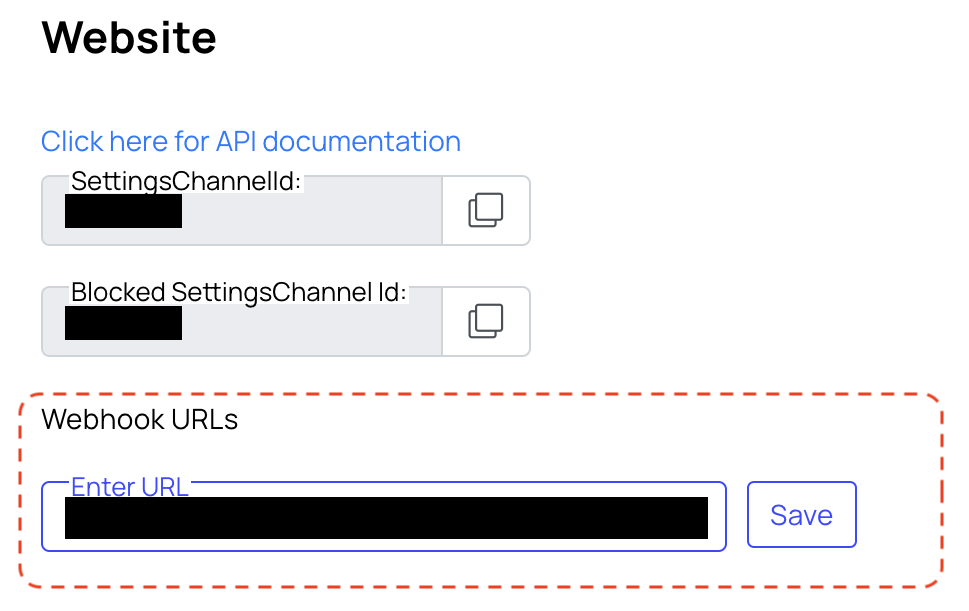
Select Save.
Each connection has its own address. If you see an older Supahost address in Smoobu, remove it.
Related
- Connecting your PMS — what happens after any PMS connects, and how to disconnect one.